Troubleshooting
If Radio Silence shows an error about the network extension, doesn't start or just crashes, try these troubleshooting tips.
Tip 1: Reinstall Radio Silence
Reinstalling Radio Silence solves most problems. Uninstalling the app first is a good idea. To properly uninstall Radio Silence, it's important to do it using Finder. Other methods will not trigger the proper clean-up mechanisms in macOS.
Go to /Applications in Finder, and move Radio Silence to the trash:
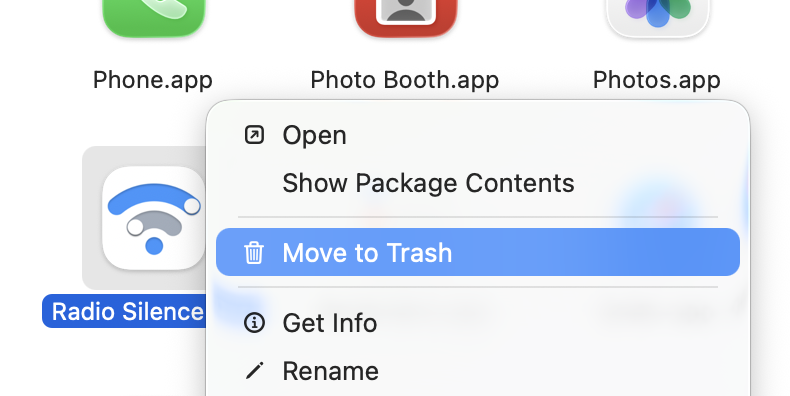
Then download the latest installer from the downloads page and proceed with the installation.
Tip 2: Check the extension in System Settings
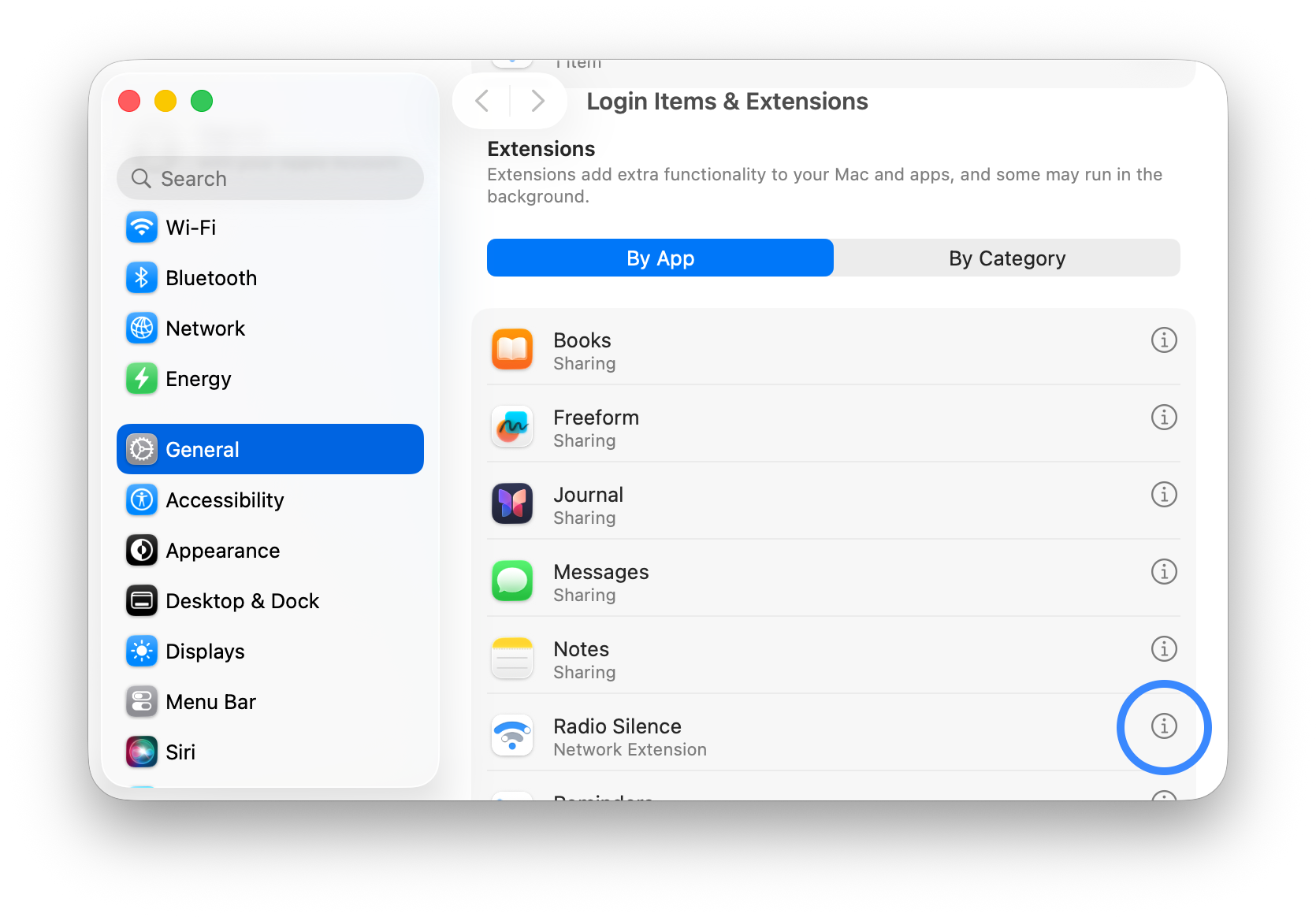
Open System Settings > General > Login Items & Extensions. Scroll down to the Extensions section. (Radio Silence might also appear in the "App Background Activity" list above that, but we're only interested in the extension here.) You should see an "i" icon next to Radio Silence:
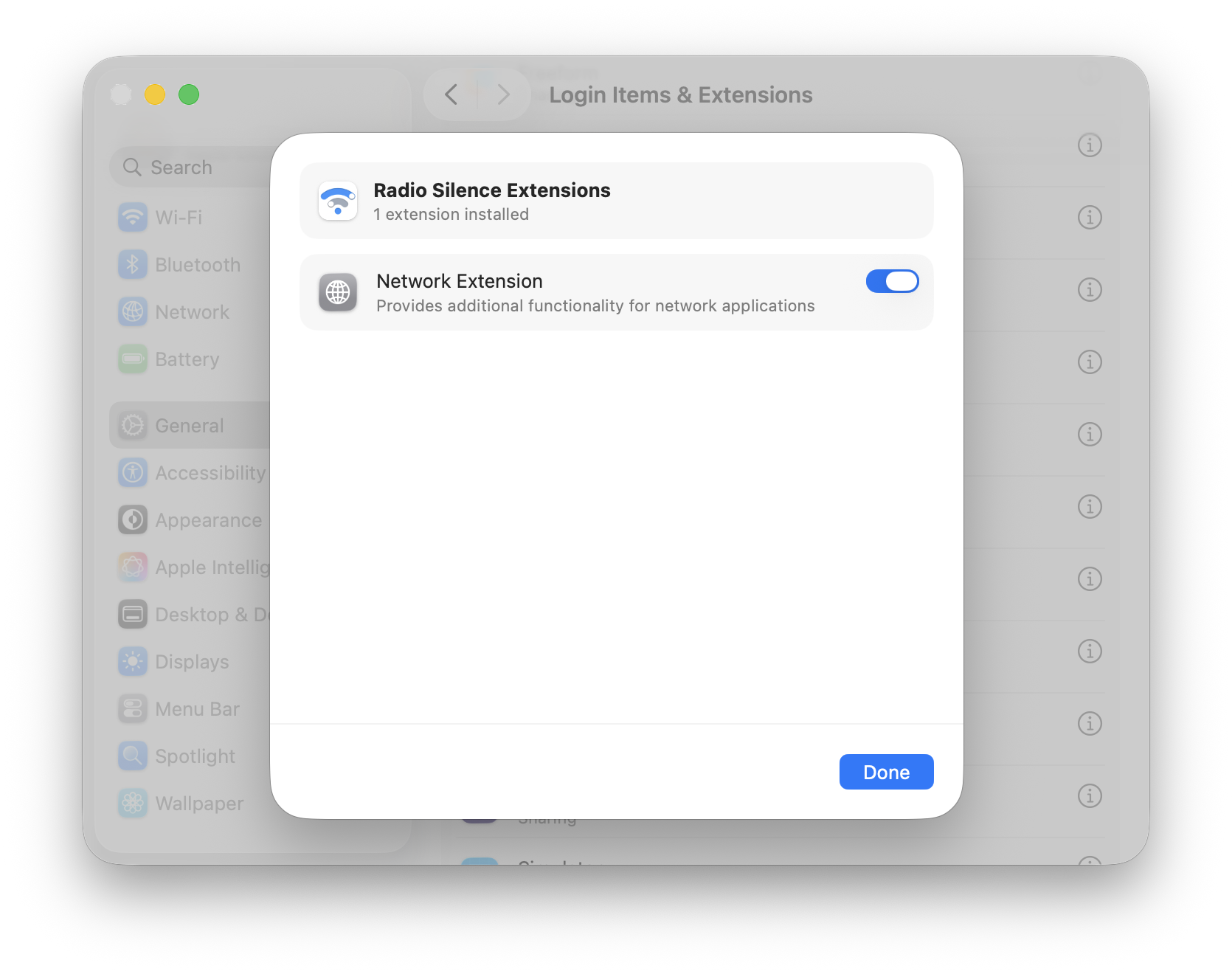
Clicking on it opens a pop-up. The "Network Extension" toggle switch should be turned on:
Tip 3: Check the network filter in System Settings
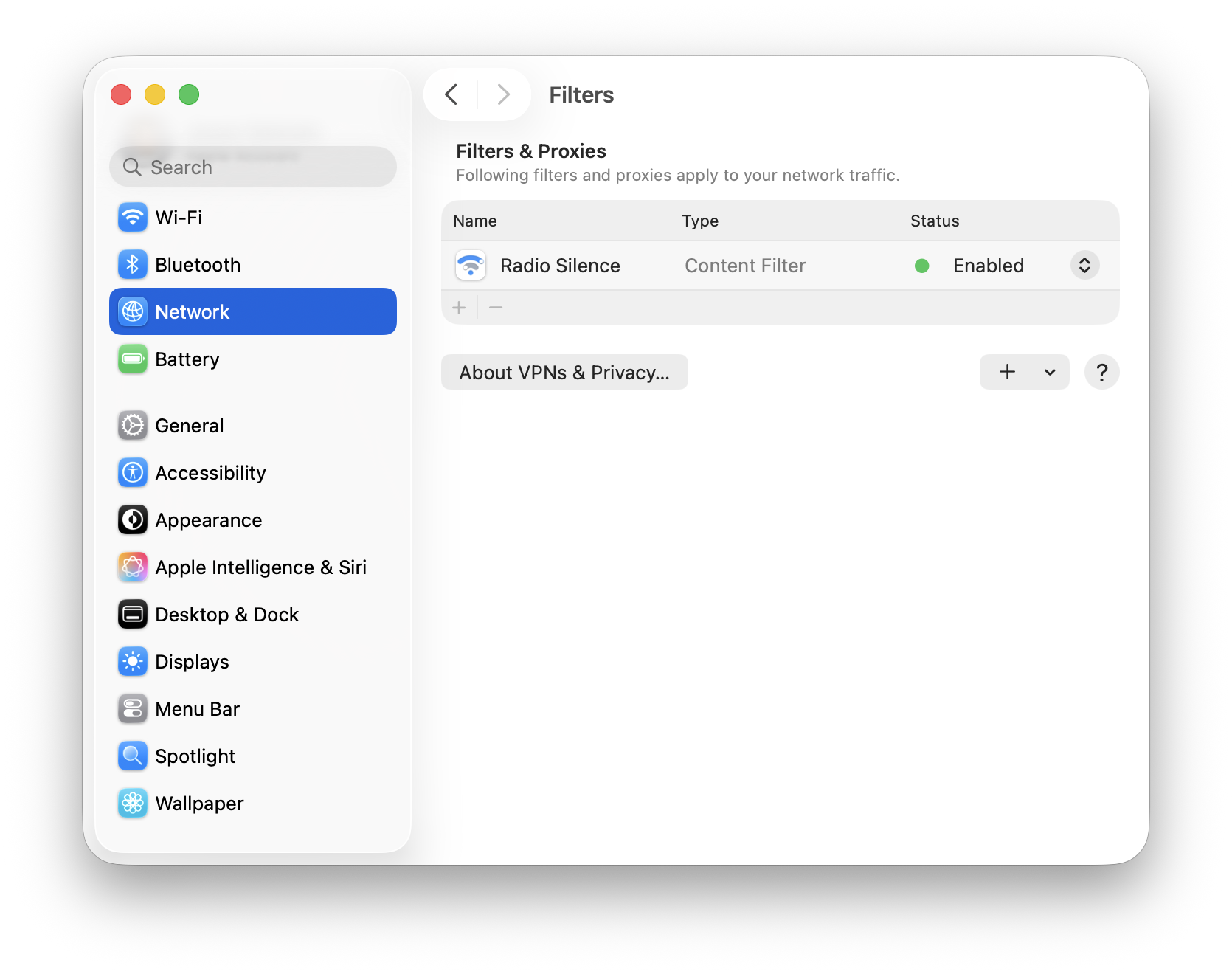
Open System Settings > Network > Filters. Radio Silence should appear in the list, and the status should be "Enabled":